

- Make a server-side request to our create payment endpoint.
- We’ll return a link to a payment page. Simply redirect your customer to this link to complete their payment.
- Once the transaction is completed, we’ll redirect the customer back to your site.
Step 1: Create Payment Details
First, you need to create the payment details for the transaction. Here is a list of the parameters you’ll need:The 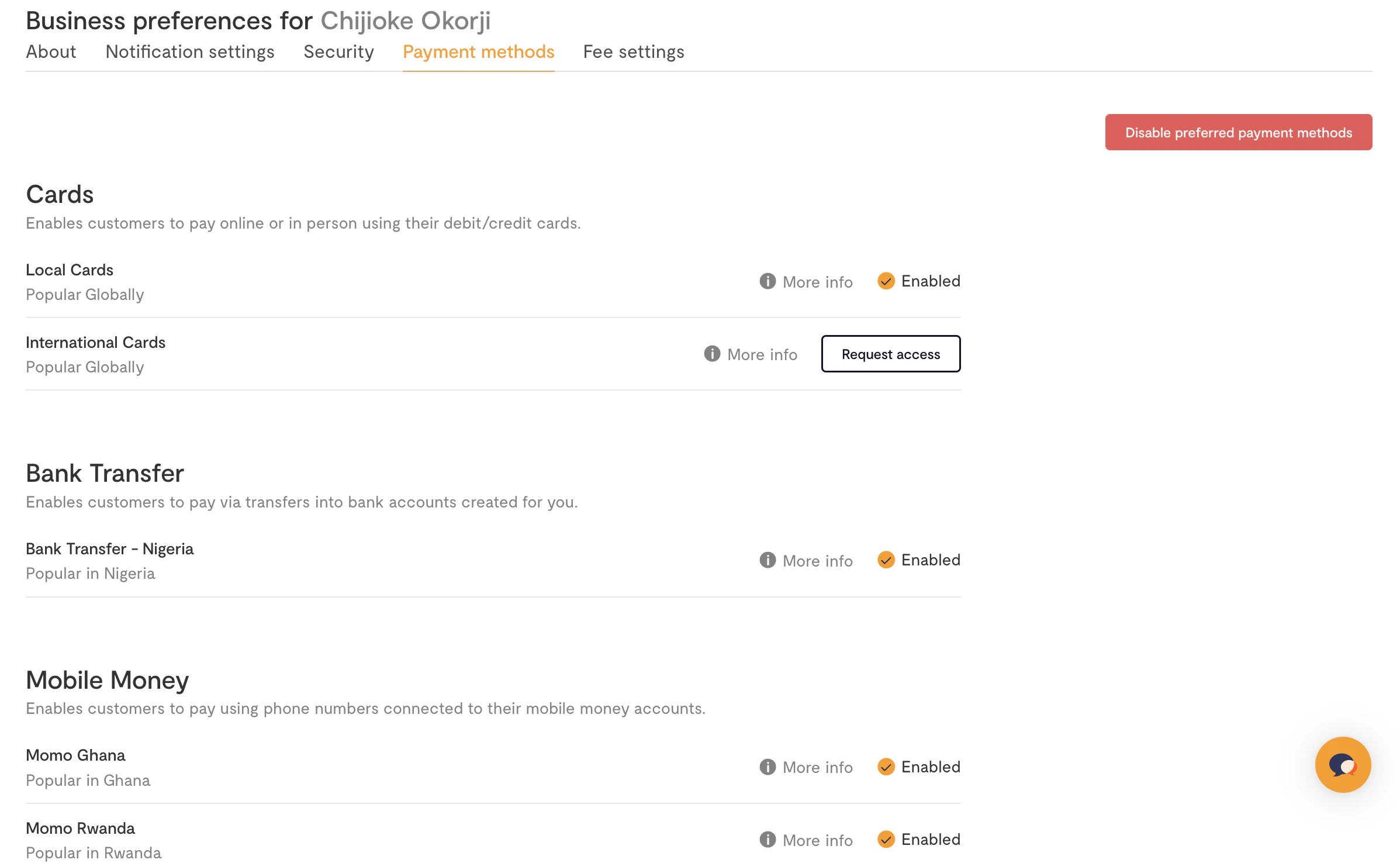
payment_options field only works if you’ve toggled Enable preferred
payment methods in the Business preference settings on your
Dashboard.Transaction Integrity
To ensure the security of payments on the client side, you can optionally use the checksum feature. To utilize it when initiating the charge, you need to include a field calledpayload_hash in the request payload. This is a hashed value created by encrypting some immutable values in your request.
The hash is computed at runtime, and compared to the value that has been passed in your request to ensure that the payment is secure.
Step 2: Get a Payment Link
Next, you’ll initiate the payment by calling our API with the collected payment details (remember to authorize with your secret key). Here’s an example in Node.jsNode.js
Success
Step 3: Redirect the User to the Payment Link
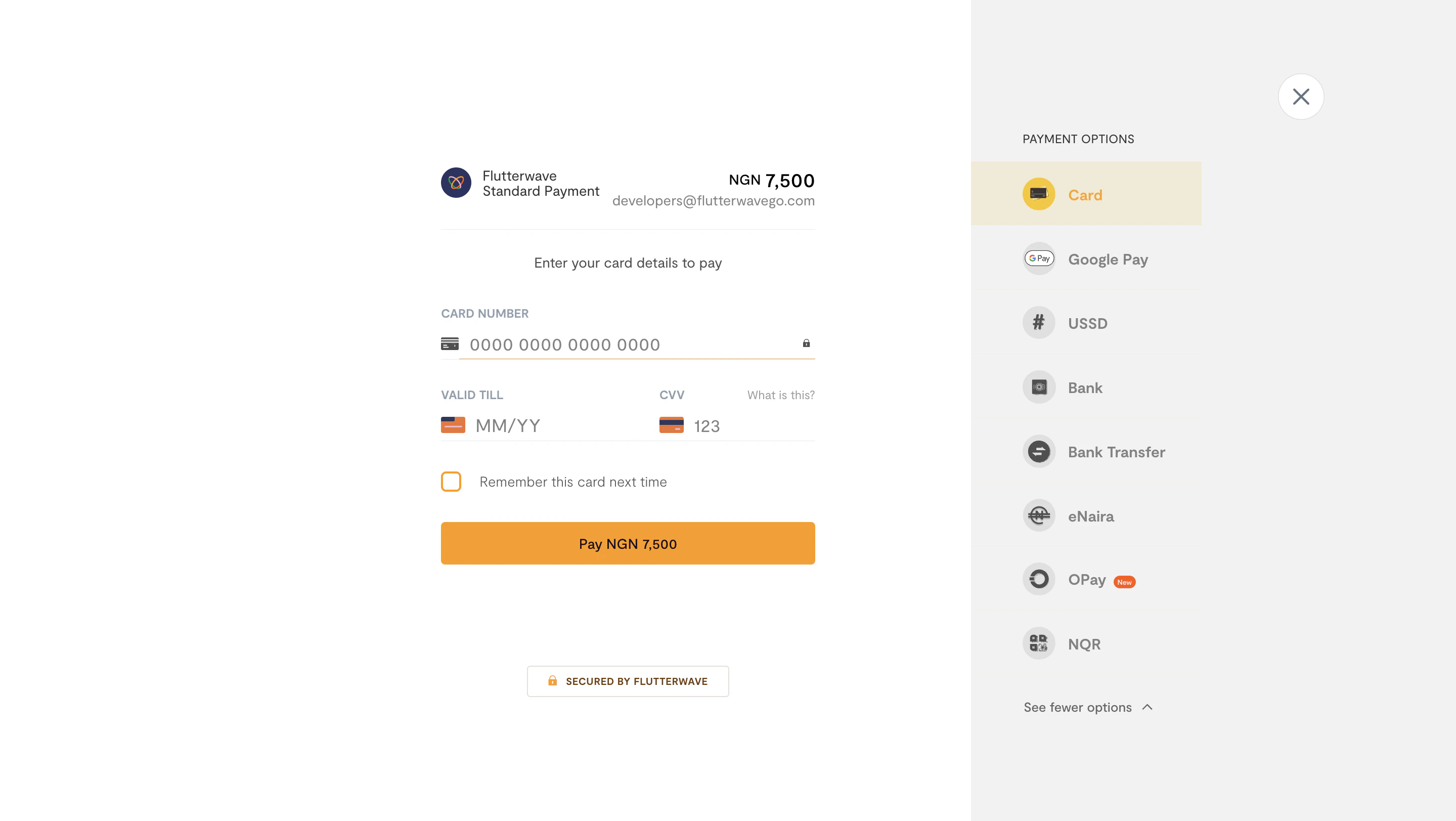
Now, all you need to do is redirect your customer to the link returned indata.link, and we’ll display our checkout modal for them to complete the payment.
Step 4: After the Payment
Four things will happen when payment is done (successful):- We’ll redirect to your
redirect_urlwithstatus,tx_ref, andtransaction_idquery parameters after payment is complete. - We’ll send you a webhook if you have that enabled. Learn more about webhooks.
- We’ll send an email receipt to your customer if the payment was successful (unless you’ve disabled that).
- We’ll send you an email notification (unless you’ve disabled that).
Node.js
What if the Payment Fails
If the payment attempt fails (for instance, due to insufficient funds), you don’t need to do anything. We’ll keep the payment page open, so the customer can try again until the payment succeeds or they choose to cancel, after which we’ll redirect to theredirect_url with the query parameters tx_ref and a status of failed.
If you have webhooks enabled, we’ll send you a notification for each failed payment attempt. This is useful in case you want to later reach out to customers who had issues paying. See our webhooks guide for an example.
Handling Payment Retries and Timeout on Checkout
Flutterwave allows you to configure retries and timeout on checkout to further improve your customers’ experience. By settingsession_duration, you limit the completion time for each payment. Once the duration has elapsed, the payment window is closed, and the user is redirected to the specified URL (redirect_url). Uncompleted transactions are immediately cancelled and marked as failed.
Timeout can be set to a max value of 1440 minutes.
Additionally, you can limit the number of attempts that a user can make for failed transactions on checkout. By setting max_retry_attempt, the user is prevented from attempting transactions unnecessarily on checkout. When making a payment, the transaction would be cancelled and marked as failed once a user’s attempts go beyond the maximum retries.
Using these configurations can help you improve security on checkout by limiting payment attempts of malicious users. For example, if timeout and retry for a transaction are set to 10 minutes and five (5) attempts, respectively. The transaction fails automatically if the user makes more than five attempts or spends more than 10 minutes completing the transaction.
Node.js